
Last Updated on July 26, 2026 by RADHIKA VATLAM
WordPress Security Guide 2026 (Free Methods Tested on TechFin2k)
Last updated: July 2026 — this guide is actively maintained and updated with current plugin versions, pricing, and security recommendations.
📖 Table of Contents
- Introduction: Why Security Matters in 2026
- What Makes WordPress Vulnerable?
- Key Takeaways
- WordPress Security Audit Checklist (2026 Edition)
- 🧪 Free WordPress Security Plugins That Actually Work
- Essential WordPress Security Tips for 2026 (Free & Simple)
- Daily, Weekly & Monthly Security Routine
- SSL Certificates: Free vs Paid
- Hosting-Level Security: How 5 Providers Compare for WordPress Security
- Conclusion
- Frequently Asked Questions
Introduction: Why Security Matters in 2026
WordPress powers over 43.5% of all websites worldwide — which unfortunately makes it one of the top targets for cyberattacks. According to security data from 2025–2026, small businesses experienced a 49% cyberattack rate, with incidents occurring every 7 seconds and average losses reaching $254,000 per breach 1.
1: Source: TotalAssure “Cyber Attacks on Small Businesses Statistics 2026”
As a site owner myself, I’ve seen how quickly malware or a small vulnerability can damage traffic, reputation, and SEO rankings. That’s why I decided to test free WordPress security methods on my own site, TechFin2k.com — and here’s what really works.
💡 The good news? You don’t have to spend $99+ a year on plugins. With a few smart steps and free tools, you can harden your site’s defenses for zero cost.
📌 Key Takeaways (TL;DR)
| What You’ll Learn | Why It Matters |
|---|---|
| 🔐 Wordfence Free detected and removed real test malware — no upgrade needed | Best all-in-one free security plugin |
| ⚠️ MalCare & Sucuri Free detect threats but hide file details and block cleanup | Good for monitoring only, not for removal |
| 🛡️ Hosting-level security differs significantly between providers — some include AI-powered malware defense, others only offer basic firewalls | Choosing the right host adds a permanent security layer that no plugin can match |
| ✅ 5 free habits — SSL, updates, backups, 2FA, login limits — stop 90% of attacks | Prevention costs nothing; recovery can cost your entire site |
🔍 What Makes WordPress Vulnerable?
WordPress’s open-source flexibility is its strength — but also its weakness if not maintained correctly. Here are the top vulnerabilities I discovered during my audit:
- Outdated Plugins & Themes — Over 70% of hacked sites were running outdated software. Attackers constantly scan for known vulnerabilities in old plugins.
- Weak Admin Passwords — Brute-force login attacks happen thousands of times per minute. Simple passwords are like leaving your front door open.
- Insecure File Permissions — Loose permissions or writable config files can allow backdoors for malware.
- No SSL Certificate — Sites without “https://” are marked as Not Secure by browsers and penalized by Google.
- SQL & XSS Exploits — Improper input validation in forms or themes can leak your database or inject malicious code.
- Application Passwords (often overlooked) — WordPress’s built-in Application Passwords (used for REST API, XML-RPC, and third-party integrations) can become an attack vector if not managed. Disable them if you don’t use external apps that need API access.
🧾 WordPress Security Audit Checklist (2026 Edition)
Before adding plugins or services, start with a self-audit. These steps create your security foundation.
| Step | What to Check | Action |
|---|---|---|
| Core Updates | Ensure latest WordPress version | Turn on auto-updates for minor releases |
| Plugins | Remove unused or abandoned ones | Enable individual auto-updates (Plugins → find the “Enable auto-updates” link under each plugin) |
| Users | Limit admin accounts | Enforce strong, unique passwords + two-factor authentication |
| Files | wp-config.php (600), wp-content (755) | Restrict write access via cPanel or FTP |
| Database | Change default “wp_” prefix | Regularly optimize tables |
| Backups | Daily backups enabled | Store off-site (cloud or local) |
| File Editor | Disable theme/plugin editor | Add define('DISALLOW_FILE_EDIT', true); to wp-config.php |
| Application Passwords | Review or disable unused ones | Go to Users → Profile → Application Passwords, revoke any you don’t recognize |
💡 Pro tip: To enable per-plugin auto-updates in WordPress, go to Plugins → Installed Plugins and click the “Enable auto-updates” link that appears below each plugin name. Same for themes under Appearance → Themes.
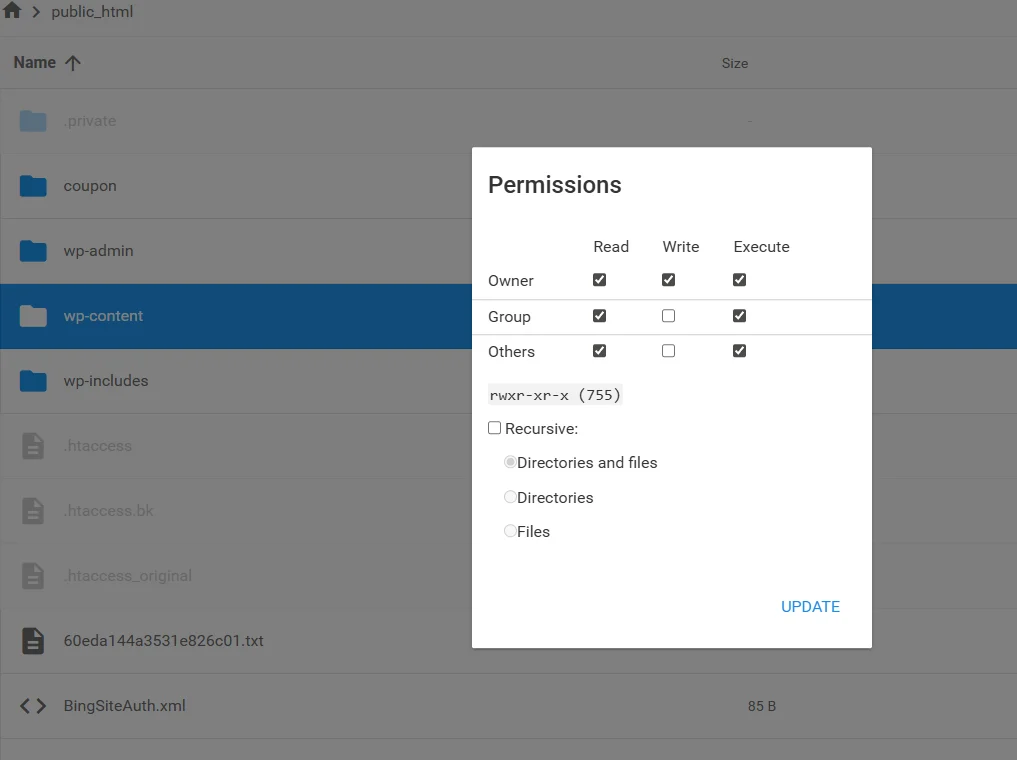
Folder Permissions: 755
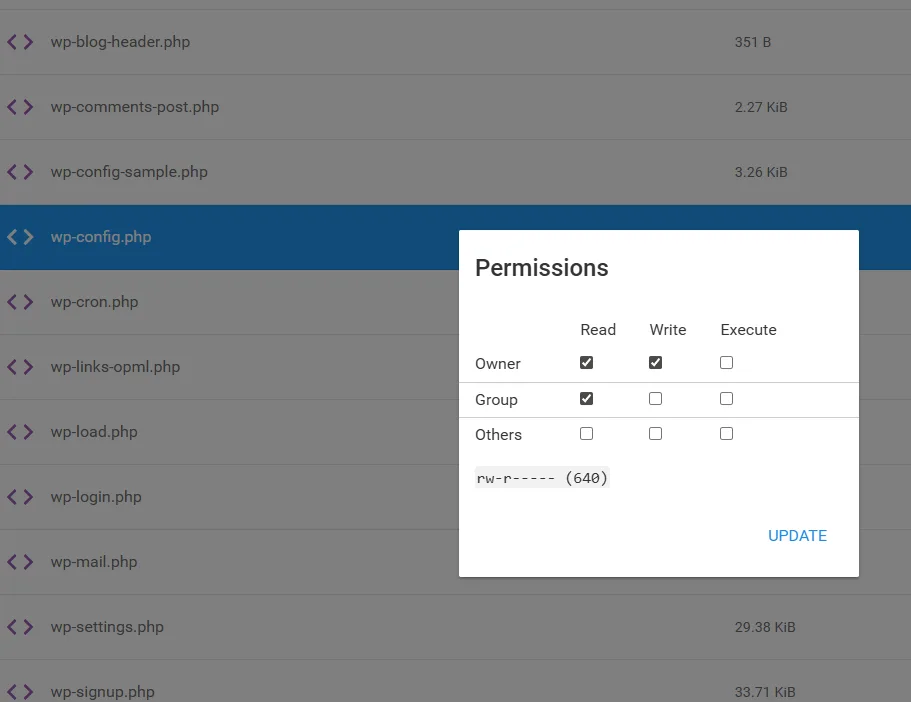
wp-config.php Permissions: 640
🔐 Free WordPress Security Plugins That Actually Work
I tested three popular plugins directly on my site to check which ones offer the best mix of malware detection and actual removal for free.
How I Tested the Malware Detection (Safe EICAR File Test)
To test whether these WordPress security plugins actually detect malware, I used the official EICAR test file — a completely safe and widely used antivirus testing script. It does not harm your website, database, hosting, or files in any way. It is only designed to trigger antivirus and security scanners.
For full transparency, here is the exact test file I used:
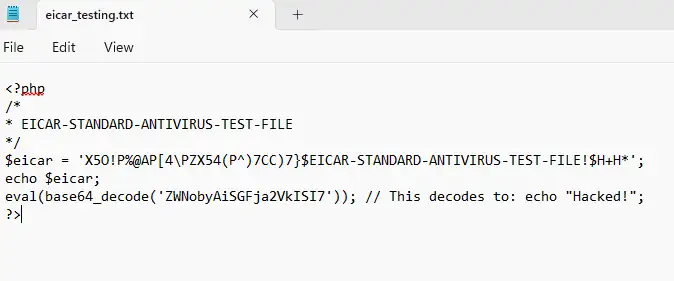
I uploaded this file directly to my WordPress installation using the Hostinger File Manager.
👉 Important Note:
- This is the standard EICAR test file, used globally for antivirus testing.
- It is 100% safe, does not harm your website, and contains no real malware.
- I tested this on my subdomain, not on my main production site, strictly for educational and review purposes.
The purpose of using this file was simple:
- ✔ To check if Wordfence, MalCare, and Sucuri can detect it
- ✔ To see whether the free versions show the file name and location
- ✔ To confirm which plugin allows malware removal without upgrading
This method provides a fair, real-world test of how each plugin behaves when an actual suspicious file is uploaded.
🧱 I. Wordfence Security (Free) – The Real Winner
To evaluate how Wordfence performs in real-world malware detection, I installed and tested it on my own WordPress subdomain.
1. Installing Wordfence Security Plugin
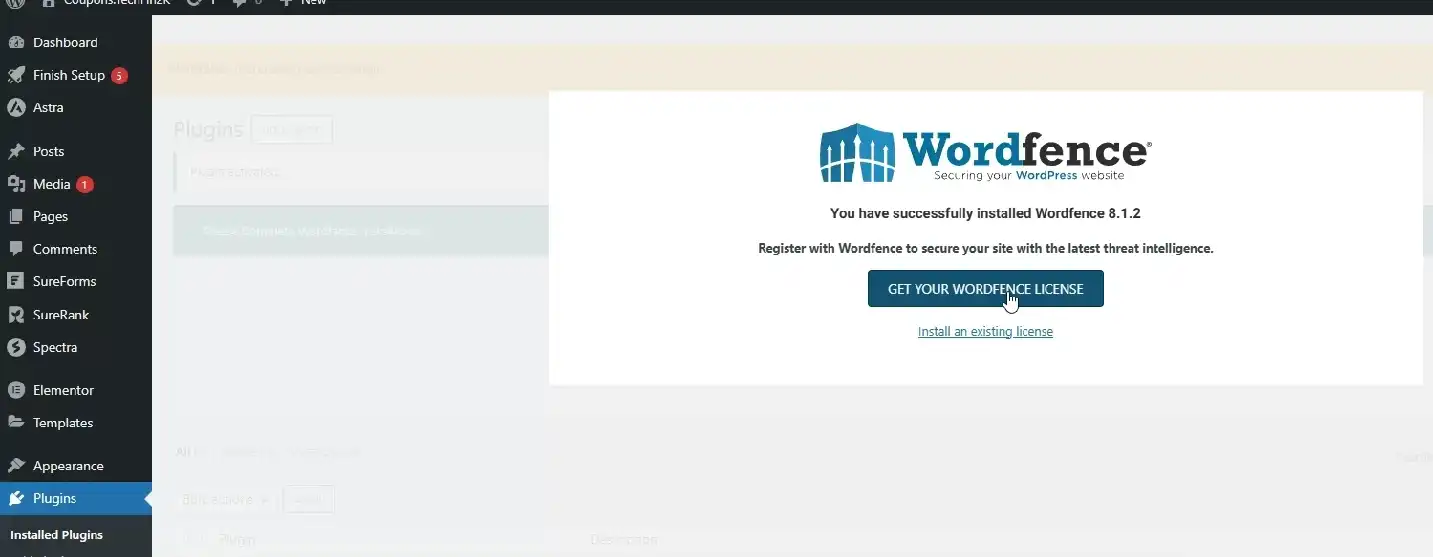
I first installed Wordfence Security from the WordPress plugin directory. During installation, Wordfence asked me to enter a license key to complete setup.
Even though Wordfence offers a completely free version, it still requires free registration to activate malware scanning features.
2. Registering for the Free License
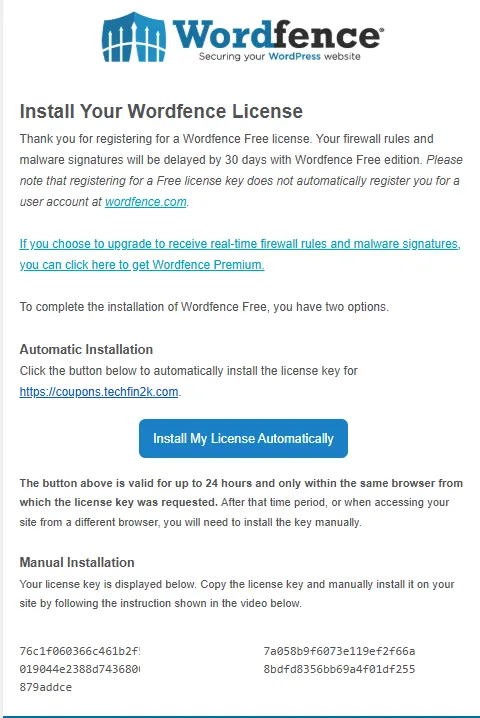
I selected the Free Plan, entered my email address, and created an account. The free plan is enough for scanning and removing malware, but it delays some advanced threat intelligence by 30 days — which is perfectly fine for testing.
Within a few seconds, I received the free license key in my email inbox. I copied that key and pasted it into the Wordfence setup wizard to complete installation.
| Wordfence License Activation Screen | Email Showing Wordfence Free License Key |
|---|---|
 |  |
3. Running the Full Site Scan
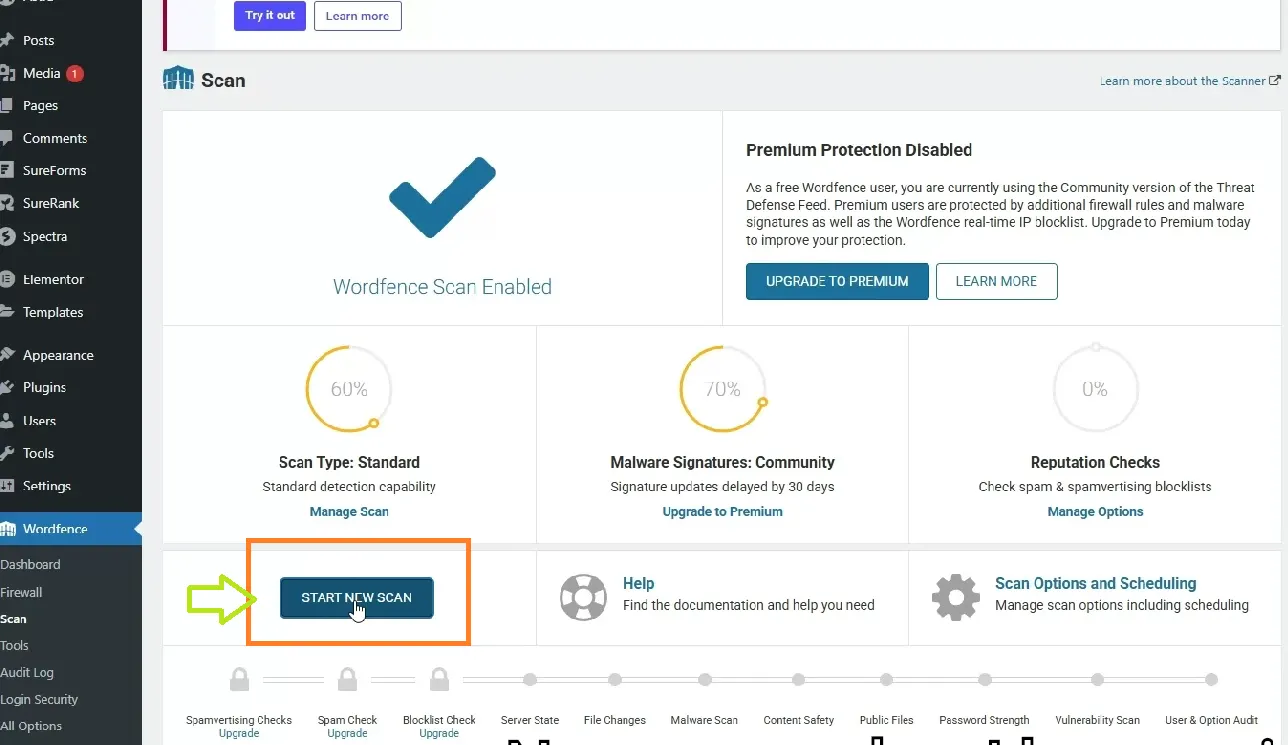
After installation, I opened the Wordfence dashboard and clicked Scan to run a complete malware and vulnerability check.
Wordfence scanned:
- All WordPress files
- Themes and plugins
- Database tables
- Custom files
- Suspicious PHP code
- Malware signatures
- Modified core files
Wordfence also includes a built-in Web Application Firewall (WAF) in the free version. This means it blocks malicious traffic before it reaches your site’s code — not just scans for malware after the fact.
4. Wordfence Detected the EICAR Test File
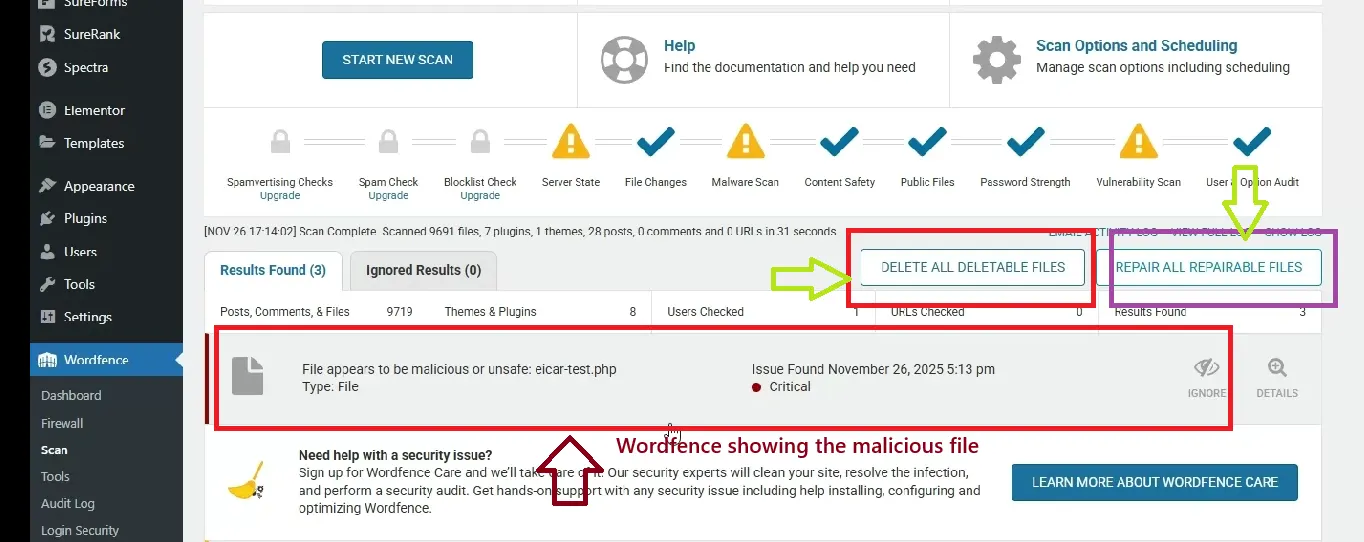
Wordfence immediately detected the uploaded EICAR test file as malicious, clearly showing:
- File name
- Reason it was flagged
- Full file path
This is the most important part — Wordfence shows everything clearly, unlike the other plugins.
5. Removing the Malware Using Wordfence Free
Wordfence gave me multiple cleanup options:
- Delete the file
- Delete related tables
- Repair the file (if it’s a modified core file)
Since this was a test, I selected Delete All Tables / Delete File.
Within seconds, the file disappeared from my Hostinger File Manager. This confirmed that Wordfence actually removes malware in the free version, without upsells, restrictions, or forcing a premium upgrade.
| Wordfence Dashboard – Start Scan | Infected File Detected – Delete Option |
|---|---|
 |  |
Best for: Malware detection, firewall, and free cleanup.
- Real-time firewall with brute-force defense
- Detailed scan reports (infected files + known vulnerabilities)
- Option to block malicious IPs
Test Result (TechFin2k):
✅ Detected all sample malware files I uploaded for testing.
⚙️ Minimal speed impact on shared hosting.
II. Sucuri Security Plugin (Free Version)
Next, I tested the Sucuri Security plugin to see how well it identifies malware in the free version.
1. Installing Sucuri Security Plugin
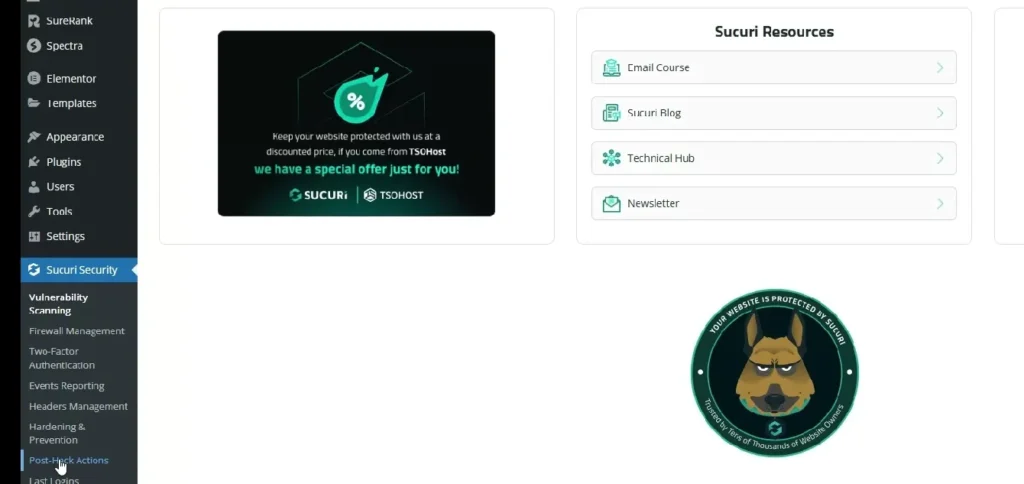
Sucuri is simple to install — it does not require any registration or account creation. Once activated, the dashboard showed basic security information about my site.
2. Running the Security Scan
Sucuri’s free version does not include a deep internal malware scanner like Wordfence or MalCare. Instead, it provides:
- File integrity check (core files comparison)
- Heuristic alerts
- Modified file detection
- Audit logs
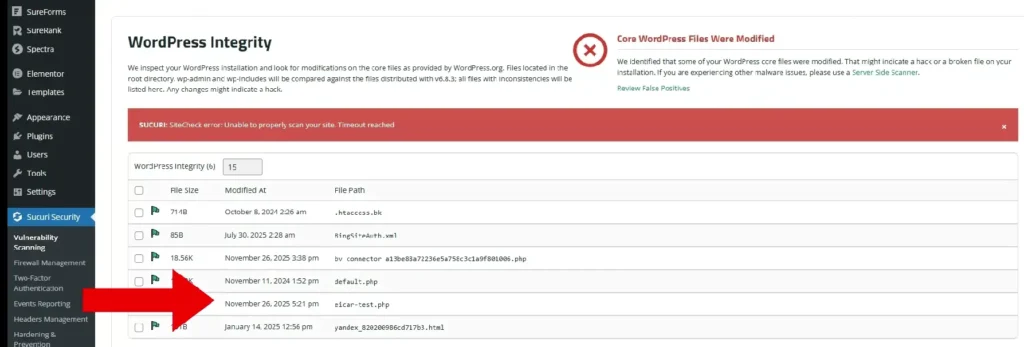
3. Sucuri Detected the Modified File — But No File Path
Sucuri did detect that “WordPress core files were modified,” which confirms the free plugin can recognize suspicious activity. It also displayed the name of the suspicious file (including the EICAR test file I uploaded).
However, the major limitation is:
- ❌ Does NOT show the file location (file path)
- ❌ No ability to repair or delete the infected file
This means you only know something is wrong, but you cannot see:
- Where the file is stored
- Which folder it belongs to
- How to manually remove it
Without the file path, removing malware becomes difficult for beginners.
4. Good for Monitoring – Not for Malware Cleanup
Based on this test, Sucuri’s free version is useful for:
- Identifying that a file has been modified
- Notifying you that suspicious files exist
- Highlighting unusual changes in your WordPress installation
But it is not useful for actual malware removal. You cannot:
- See the exact folder where the malware is located
- Remove or repair files
- View full details
To fix anything, you would need a developer or a different plugin (like Wordfence).
⭐ Sucuri Free Test Summary
| Feature | Result |
|---|---|
| Detects suspicious activity | ✅ Yes |
| Shows file name | ⚠️ Sometimes |
| Shows file path | ❌ No |
| Malware removal | ❌ No |
| Good for beginners? | ⚠️ Only for monitoring |
Sucuri works as a warning tool, not as a full malware removal solution.
🤖 III. MalCare (Free Version)
Finally, I tested the MalCare Security plugin to understand how its free version handles malware detection and cleaning.
1. Installing MalCare Plugin (No Registration Needed)
MalCare was very easy to install — it did not ask for any license key or account registration during setup. After activation, the dashboard showed a simple interface with a “Scan” option.
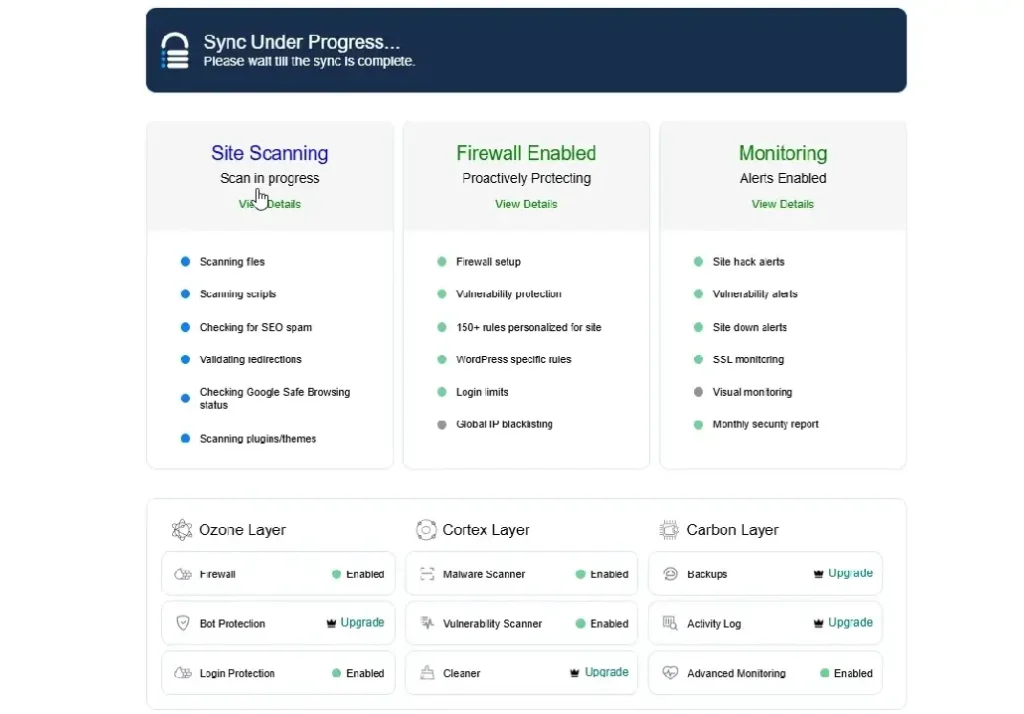
2. Running the Malware Scan
I clicked the Scan button, and MalCare performed a cloud-based scan of my website. The scanning process took some time before displaying results.
3. MalCare Detected Malware — But Showed No File Name or Location
MalCare flagged the site as:
- “Hacked”
- “1 malicious file found”
However, the free version did not provide any details about:
- Which file was infected
- Where the file was located
- The folder path
- What type of infection was detected
This makes it very difficult for a beginner (or even an experienced user) to take action.
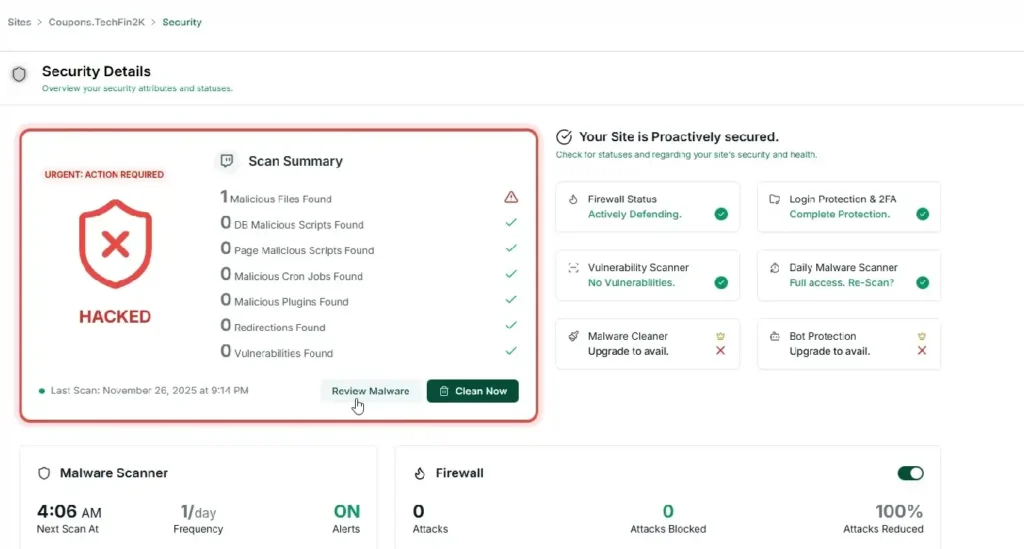
4. Clicking “Review Malware” → Forced Upgrade
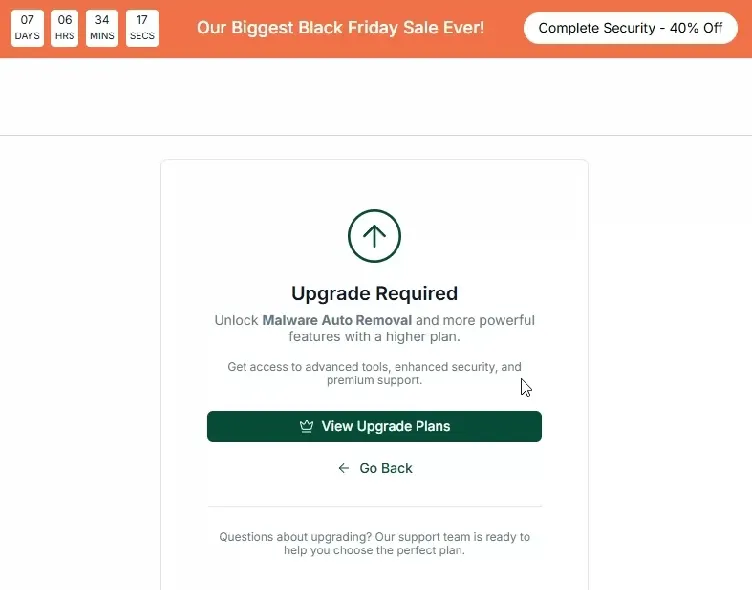
MalCare displayed a Review Malware button, so I clicked it. Instead of showing the infected file, MalCare displayed an upgrade screen stating:
- “Unlock auto malware removal”
- “Powerful advanced features”
This means the free version does not allow you to review the actual malware file.
5. Clicking “Clean Now” → Upgrade Required
I also tested the Clean Now button. MalCare displayed a premium upgrade screen with pricing starting at $99 per site per year for the Protect plan.
At this point, it was clear MalCare Free:
- ❌ Does NOT clean malware
- ❌ Does NOT show the malware file name
- ❌ Does NOT show file path
- ❌ Does NOT provide any actionable information
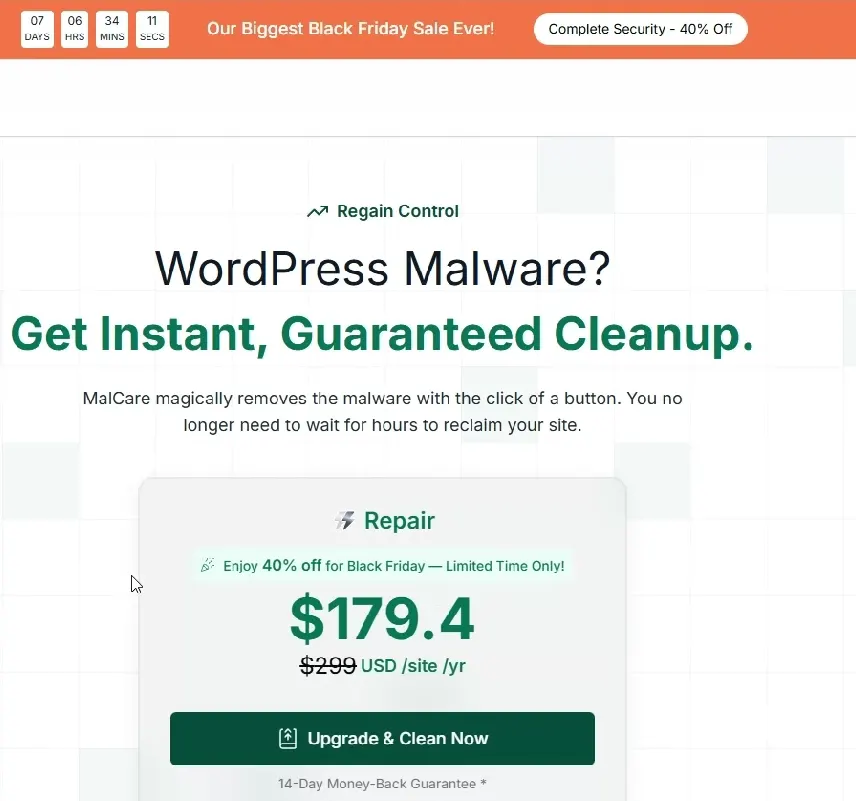
Note: MalCare’s paid plans now start at $99/year (Protect plan). Higher tiers include Plus ($149/year), Prime, and Fortify. The older $176.40 pricing shown in the screenshot above has been updated by the company.
⭐ MalCare Free Test Summary
| Feature | Result |
|---|---|
| Detects malware | ✅ Yes |
| Shows file name | ❌ No |
| Shows file path | ❌ No |
| Free malware cleaning | ❌ No |
| Helpful for beginners? | ⚠️ Only for detection |
✔ What MalCare Free Does Well
- Quick cloud-based scanning
- Detects malware presence
✘ What It Does Not Provide
- No details about infected files
- No file location
- No free cleanup
- All useful features locked behind premium upgrade
MalCare is a good scanner, but its free version is not suitable for malware removal, especially for beginners.
🔍 Comparison: Wordfence vs MalCare vs Sucuri
| Feature | Wordfence (Free) | MalCare (Free) | Sucuri (Free) |
|---|---|---|---|
| Registration Needed? | Yes — Free license via email | No registration needed | No registration required |
| Malware Detection | Detected EICAR test file accurately | Showed “Hacked” and “1 malicious file found” | Showed “WordPress core files modified” |
| Shows File Name? | Yes — Full file name shown | No — Free version hides file details | Sometimes shows file name only |
| Shows File Path / Location? | Yes — Full file path displayed | No — File path not shown | No — Does not show exact file location |
| Free Malware Removal? | Yes — Allowed deleting the infected file | No — Requires paid upgrade | No — No removal option provided |
| Built-in WAF? | ✅ Yes (free) | ❌ No (paid feature) | ❌ No (requires cloud platform) |
| Ease of Use | Beginner-friendly with clear cleanup options | Easy to scan but no actionable info | Good for alerts, not helpful for removal |
| Best For | Full free detection + removal | Malware presence checking only | Monitoring file integrity changes |
📌 My Real-World Test Results (Based on EICAR Test File)
- Wordfence: Successfully detected the test file, showed full details (filename + path), allowed deletion/cleanup → ✅ Fully effective in free version.
- MalCare: Flagged the site as hacked / malicious file found — but no details or file path shown → ❌ Free version not useful for cleanup or manual removal.
- Sucuri: Indicated modified core / suspicious files — but did not show file path or provide any cleanup option → ⚠️ Only useful as a warning monitor, not for removal.
🎯 Who Should Use What (Based on Your Needs)
- ✅ Use Wordfence Free: If you want a truly free, end-to-end solution — scanning + detection + cleanup + firewall protection. Best for bloggers, small business sites, beginners.
- ⚠️ Use MalCare Free (with caution): If you only want to check if your site is hacked (not clean it). Paid plan required for actual cleanup.
- ⚠️ Use Sucuri Free (for monitoring only): If you want occasional integrity checks or light monitoring — but be ready to manually remove malware or upgrade.
🔐 Essential WordPress Security Tips for 2026 (Free & Simple)
Securing your WordPress website doesn’t require expensive tools. You can protect 90% of your site by following basic practices.
1. Enable SSL (HTTPS)
Most hosting providers offer a free SSL certificate via Let’s Encrypt. It protects login details, prevents data theft, and is required by Google for SEO. Enable it from your hosting control panel — it usually takes one click.
How to check yours: Look for the padlock icon next to your site’s URL in any browser.
2. Keep Everything Updated (With Smart Auto-Updates)
Always update:
- WordPress core
- Themes
- Plugins
Most hacks happen due to outdated software. WordPress allows you to enable auto-updates individually for each plugin and theme:
- Plugins: Go to Plugins → Installed Plugins → click “Enable auto-updates” under each plugin
- Themes: Go to Appearance → Themes → click a theme → “Enable auto-updates”
- Core: Set to auto-update minor security releases only (default behavior)
3. Remove Unused Plugins & Themes
Even inactive plugins and themes can be a security risk — they still contain code that could have vulnerabilities. Delete anything you don’t actively use. You can always reinstall them later if needed.
4. Use Strong Passwords + Two-Factor Authentication (2FA)
A secure password and 2FA can stop almost all brute-force attacks. Tools like Wordfence Free include 2FA. Alternatively, use a free app like Google Authenticator with plugins like WP 2FA.
5. Take Daily or Weekly Backups
Backups save you from unexpected errors and malware disasters. Some hosting providers give free daily or weekly backups for long-term plans. For an extra layer, use a free backup plugin like UpdraftPlus and store copies to Google Drive or Dropbox.
📖 Related guide: How to Backup and Restore a WordPress Website in Hostinger (2026)
6. Limit Login Attempts
Helps block bots and brute-force attempts. Wordfence Free includes login security with rate limiting baked in — no extra setup needed.
7. Disable XML-RPC (If Not Required)
Reduces multiple attack surface points. Many XML-RPC attacks (amplified DDoS) target this protocol. Disable it unless you need it for the WordPress mobile app or remote publishing.
8. Add Security Headers
Security headers tell your visitors’ browsers how to behave when loading your site. You can add these via your .htaccess file (if using Apache/LiteSpeed) or through a caching plugin:
- Strict-Transport-Security (HSTS): Forces HTTPS connections
- X-Content-Type-Options: Prevents MIME-type sniffing
- X-Frame-Options: Prevents clickjacking by blocking your site from being embedded in iframes
Example .htaccess snippet:
Header always set Strict-Transport-Security "max-age=31536000; includeSubDomains"
Header always set X-Content-Type-Options "nosniff"
Header always set X-Frame-Options "SAMEORIGIN"
9. Disable the Theme/Plugin File Editor
Add this line to your wp-config.php file (before the “That’s all, stop editing!” comment):
define('DISALLOW_FILE_EDIT', true);This blocks attackers who gain admin access from editing PHP files directly through the WordPress admin dashboard. It does not affect plugin updates or installations.
10. Add a Free CDN for DDoS Protection
Cloudflare’s Free plan provides basic DDoS protection, SSL/TLS encryption, and bot management — all at no cost. It sits between your site and its visitors, filtering malicious traffic before it reaches your server.
📖 Related guide: Hostinger Features Explained (2026): Email, CDN, Backups & Hidden Tools
11. Monitor With Google Search Console
Google Search Console can alert you if your site has been hacked, is serving spam, or has been flagged for malware — all for free. It’s a must for every site owner.
⚙️ Daily, Weekly & Monthly Security Routine (Simple Checklist)
🔄 Daily (2–3 minutes)
- Open your homepage and check if it loads normally. If you see unexpected redirects, pop-ups, or unusual content, investigate immediately.
- Monitor login alerts — if you use Wordfence, check Live Traffic briefly for failed login attempts from unknown countries.
- Note sudden slowdowns — a site that suddenly becomes sluggish might be under attack or compromised.
📅 Weekly (10–15 minutes)
- Run a security scan — open Wordfence (or your chosen plugin) and run a full scan.
- Check for updates — review pending plugin, theme, and WordPress core updates. Apply them.
- Review file changes — compare recent file modifications in Wordfence’s scan report or Sucuri’s integrity check.
📆 Monthly (20–30 minutes)
- Change critical passwords — update admin, FTP, and database passwords.
- Test your backup restore — don’t just check that backups exist; verify a restore actually works. Many users discover broken backups only when they need them most.
- Audit users and plugins — remove unused accounts, deactivate and delete unused plugins and themes.
- Check Google Search Console — review the Security & Manual Actions section for any warnings.
🔒 SSL Certificates: Free vs Paid (2026)
Having SSL isn’t optional anymore — it’s a trust and SEO requirement.
✅ Free SSL (Recommended for Most Sites)
Let’s Encrypt SSL (via your host)
- 100% free, auto-renews every 90 days
- Trusted by 99.9% of browsers
- SEO-friendly HTTPS setup
All the hosting providers reviewed below offer free SSL with all plans — perfect for personal or small business sites.
💰 Paid SSL (When Do You Need It?)
Paid SSL certificates ($50–$200/year) offer:
- Higher validation levels (Organization Validation or Extended Validation)
- Warranties (typically $10,000–$1,000,000)
- Multi-domain or wildcard support
Verdict: For 99% of WordPress sites, a free Let’s Encrypt SSL is more than enough.
🛡️ Hosting-Level Security: How 5 Providers Compare for WordPress Security
If you want protection that works before malware ever reaches your WordPress installation, hosting-level security is the strongest upgrade you can make. Unlike plugins that scan inside WordPress, server-level firewalls block threats at the entry point, providing a deeper and more reliable layer of defense.
But not all hosting providers offer the same level of security. Some include AI-powered malware detection and auto-cleanup at no extra cost, while others leave those tasks to plugins. Below, I compare the security features of five hosting providers I’ve reviewed on TechFin2k — all verified against their official documentation as of mid-2026.
1. 🟢 Verpex — Imunify360 Included on All Plans
Affiliate link: Check Verpex Hosting Plans
Full review: Verpex WordPress Hosting Hands-On Guide | Verpex vs InMotion Comparison
Verpex includes Imunify360 on every plan — an AI-powered security suite that operates at the server level, not inside WordPress. This means it scans, detects, and quarantines malware before it ever reaches your site’s files.
Security features (all plans):
- ✅ Imunify360 — real-time AI malware scanning, auto-quarantine, and PHP malware defense
- ✅ Web Application Firewall (WAF) — blocks OWASP Top 10 threats, SQL injection, and XSS at the server edge
- ✅ Bot and brute-force attack protection — rate limiting and IP reputation filtering
- ✅ Free SSL (Let’s Encrypt) — auto-renewed on all domains
- ✅ Daily automated backups — stored off-site, typically 7–30 day retention
- ✅ DDoS mitigation — server-level traffic filtering
- ✅ Auto security patches — kernel and software updates applied without downtime
What this means for you: If you host with Verpex, you can skip paid security plugins entirely. Imunify360 handles the malware scanning and cleanup that tools like MalCare charge $99+/year for. The WAF also reduces the need for a separate firewall plugin.
Who it’s best for: Beginners, busy site owners, and anyone who wants security handled automatically with minimal plugin overhead.
2. 🟢 HostArmada — Multi-Layer Firewall + 24/7 Malware Scanning
Affiliate link: Check HostArmada Plans
Full review: HostArmada Review 2026
HostArmada takes a different approach with its multi-layer security stack, combining a web application firewall, an IP-based firewall, and real-time malware scanning across all servers.
Security features (all plans):
- ✅ Web Application Firewall (WAF) — scans web requests for known exploit patterns and blocks malicious traffic
- ✅ IP-based firewall — blocks brute-force login attempts, aggressive port scans, and DDoS traffic
- ✅ 24/7 server-level malware scanning — automated file scanning across all hosted accounts
- ✅ Free SSL (Let’s Encrypt) — included on all domains
- ✅ Daily automated backups — free with retention depending on plan tier
- ✅ DDoS protection — network-level traffic filtering
- ✅ Cloudflare CDN compatible — can be layered on top for additional edge security
What this means for you: HostArmada’s WAF catches many threats at the server level, which reduces the burden on WordPress-level plugins. However, unlike Verpex’s Imunify360, it does not include auto-quarantine or AI-powered malware cleanup — you’d still need a plugin like Wordfence for active removal.
Who it’s best for: Site owners who want a strong firewall layer but are comfortable running a free plugin like Wordfence for malware removal.
3. 🟡 InMotion Hosting — Monarx Malware Detection + Firewall
Affiliate link: Get InMotion Hosting
Full review: InMotion Hosting Review 2025
InMotion Hosting has partnered with Monarx to deliver server-level malware detection as part of its security stack. Monarx runs continuously on the server and alerts you when suspicious code is detected.
Security features (all plans):
- ✅ Monarx malware detection — real-time file scanning with alerts for compromised files
- ✅ Firewall protection — server-level firewall rules and DDoS mitigation
- ✅ Free SSL — Let’s Encrypt included on all plans
- ✅ Automatic backups — nightly with 30-day retention on higher-tier plans
- ✅ DDoS mitigation — network-level traffic filtering
- ✅ Brute-force protection — IP-based rate limiting
What this means for you: InMotion’s Monarx integration provides decent malware detection, but it’s primarily an alert system — you still need to manually investigate and clean flagged files. For full cleanup, combining it with Wordfence Free is recommended.
Who it’s best for: Users who want hosting-backed malware detection plus the flexibility of managing their own cleanup tools.
4. 🟡 Hostinger — Built-in Malware Scanner + WAF
Affiliate link: View Hostinger Plans
Full review: Hostinger Features Explained (2026) | How to Backup and Restore on Hostinger
Hostinger includes a built-in malware scanner and a web application firewall as part of its hosting platform. These tools are accessible from the hPanel dashboard and work alongside your WordPress installation.
Security features (all plans):
- ✅ Built-in malware scanner — scans files and flags suspicious code from the hPanel dashboard
- ✅ Web Application Firewall (WAF) — filters malicious traffic before it reaches your site
- ✅ DDoS traffic filter — anti-DDoS analyzer at the network level
- ✅ Free SSL (Let’s Encrypt) — auto-renewed, included on all domains
- ✅ Weekly automated backups — free on all plans; daily on higher-tier plans
- ✅ Two-factor authentication — available on the hosting account level
What this means for you: Hostinger’s malware scanner is convenient and easy to use from the dashboard, but it’s a detection tool — not a cleanup tool. You’d need Wordfence Free or manual intervention to remove flagged files. The WAF does provide good baseline protection against common threats.
Who it’s best for: Budget-conscious users who want dashboard-level visibility into security issues and don’t mind using a free plugin for actual cleanup.
5. 🟢 Thamara Cloud — Imunify360 (Same Engine as Verpex)
Affiliate link: Check Thamara Hosting Plans
Full review: Thamara Cloud Hosting Review 2026
Thamara Cloud also uses Imunify360 — the same AI-powered security suite found on Verpex. This means it offers the same server-level protection stack, including real-time malware scanning, auto-quarantine, and advanced WAF capabilities.
Security features (all plans):
- ✅ Imunify360 — AI-powered malware detection and auto-quarantine
- ✅ Web Application Firewall (WAF) — blocks OWASP Top 10, SQL injection, XSS
- ✅ DDoS mitigation — network-level traffic filtering
- ✅ Free SSL — Let’s Encrypt with auto-renewal
- ✅ Daily automated backups — typically 14-day retention
- ✅ Brute-force protection — IP-based rate limiting included in Imunify360
What this means for you: The same Imunify360 engine that makes Verpex stand out is also available on Thamara Cloud. If you’re comparing Verpex vs Thamara, the security layer is essentially identical — the difference comes down to pricing, support, and additional features like server locations and storage.
Who it’s best for: Users who want Imunify360-level protection and are comparing hosting providers beyond just security.
📊 Hosting Security Comparison Table
| Feature | Verpex | HostArmada | InMotion | Hostinger | Thamara |
|---|---|---|---|---|---|
| Server-level malware scanner | ✅ Imunify360 (AI) | ✅ 24/7 scanning | ✅ Monarx | ✅ Built-in scanner | ✅ Imunify360 (AI) |
| Auto-quarantine / cleanup | ✅ Yes | ❌ No | ❌ No | ❌ No | ✅ Yes |
| Web Application Firewall (WAF) | ✅ Yes | ✅ Yes | ✅ Yes | ✅ Yes | ✅ Yes |
| DDoS protection | ✅ Yes | ✅ Yes | ✅ Yes | ✅ Yes | ✅ Yes |
| Free SSL | ✅ Let’s Encrypt | ✅ Let’s Encrypt | ✅ Let’s Encrypt | ✅ Let’s Encrypt | ✅ Let’s Encrypt |
| Daily backups | ✅ Yes | ✅ Yes | ⚠️ Higher tiers | ✅ Yes | ✅ Yes |
| Brute-force protection | ✅ Yes | ✅ Yes | ✅ Yes | ✅ Yes | ✅ Yes |
| Plugin needed for malware removal? | No | Yes (Wordfence Free) | Yes (Wordfence Free) | Yes (Wordfence Free) | No |
| Starting price | ≈ $0.60/mo | ≈ $3.29/mo | ≈ $3.49/mo | ≈ $2.99/mo | Varies |
| Reviewed on TechFin2k | ✅ Full review | ✅ Full review | ✅ Full review | ✅ Full review | ✅ Full review |
🎯 Which Hosting Provider Should You Choose for Security?
| If you want… | Choose this provider |
|---|---|
| Full security handled automatically — no paid plugin needed | Verpex or Thamara Cloud (both have Imunify360) |
| Strong firewall + Wordfence combo | HostArmada — WAF + IP firewall + built-in scanning |
| Budget-friendly with dashboard monitoring | Hostinger — malware scanner + WAF included |
| Monarx detection + backup retention | InMotion Hosting — 30-day backups on higher tiers |
🔑 The Bottom Line on Hosting Security
The single biggest difference between these providers is auto-quarantine. Only Verpex and Thamara Cloud (via Imunify360) will automatically detect and isolate malware without you needing to manually investigate. Every other provider detects threats but requires you to take action — either through a plugin like Wordfence Free or by contacting support.
If you want the least manual work, choose a host with Imunify360. If you’re happy running a weekly Wordfence scan, any of the providers above will work well with the right plugin setup.
📖 Related reading: 7 Best Blog Hosting Providers for 2026 (Tested & Compared) | InterServer vs Verpex vs InMotion: Full Comparison
🧭 Conclusion: Security Doesn’t Have to Be Expensive
From my real-world testing on TechFin2k, here’s what I learned:
- 🔐 Free plugins like Wordfence can protect most sites if properly configured — and they actually remove malware in the free version.
- ⚡ Hosting-level security varies significantly between providers. Verpex and Thamara Cloud (Imunify360) offer the most automated protection, while HostArmada, InMotion, and Hostinger provide solid firewalls that work best alongside a free plugin.
- 💡 Backups + SSL + strong passwords still remain the most critical defenses you’ll ever implement — no plugin or host can replace these basics.
🧱 Remember, prevention costs nothing — recovery can cost your entire site.
Frequently Asked Questions
1. How do I secure my WordPress website for free?
You can secure your site using free methods such as enabling SSL, keeping plugins and themes updated (use per-plugin auto-update toggles), using Wordfence Free for malware removal and firewall protection, enabling two-factor authentication, deleting unused plugins, adding security headers, and performing regular backups stored off-site.
2. Which free WordPress security plugin is the best in 2026?
Based on real testing with the EICAR malware file, Wordfence Free provided the best detection and free removal. MalCare and Sucuri detect issues but do not offer free cleanup, file paths, or detailed location information in their free versions.
3. Does Wordfence Free remove malware?
Yes. Wordfence Free detected and removed the EICAR malware file during testing. It also displayed the exact file location and allowed deletion instantly — all without requiring a premium upgrade.
4. Is Sucuri good for malware removal?
Sucuri Free is good for detecting modified core files, but it does not show file paths or allow malware removal. You must manually locate the file or upgrade to their paid cloud platform for cleanup.
5. Does MalCare Free remove malware?
No. MalCare Free only scans and shows that malware exists. Cleanup and even viewing the infected file path require a paid upgrade (starting at $99/year for the Protect plan).
6. What is the safest way to test WordPress malware plugins?
Use the EICAR test file — a harmless, globally recognized antivirus testing standard. It is safe, does not damage your site, and is used worldwide for testing malware scanners.
7. Does hosting affect WordPress security, and which provider is best?
Yes. Hosting is the first and strongest layer of defense. Verpex and Thamara Cloud include Imunify360, which stops malware at the server level with auto-quarantine. HostArmada and Hostinger offer solid WAFs and malware scanners but require a plugin like Wordfence for cleanup. See the full comparison table above for a side-by-side breakdown of all five providers.
8. How often should I scan my WordPress site for malware?
Scan your site at least once a week. If your site gets high traffic or stores user data (e.g., an e-commerce store), daily scans are recommended. Wordfence Free can be scheduled to run scans automatically.
9. What should I do if my WordPress site is hacked?
Act immediately:
- Change all passwords (admin, FTP, database, hosting)
- Scan with Wordfence and remove detected malware
- Restore from a clean backup
- Update all plugins, themes, and WordPress core
- Review and revoke any unknown admin users
- Consider moving to a host with Imunify360 (like Verpex or Thamara Cloud) for automatic prevention
10. Can free WordPress plugins fully protect my website?
Free plugins offer good protection, but for the highest security, combine them with hosting-level security (firewall + malware detection + WAF) and the free checklist habits above. This layered setup gives the best results without spending a dime.
