
Last Updated on March 22, 2026 by RADHIKA VATLAM
Why I Wrote This Guide
Learning how to fix 404 errors in WordPress is essential for maintaining your site’s SEO health and crawl efficiency.
I was reviewing my Google Search Console dashboard one morning when something caught my eye. Under Crawl Stats, Googlebot had crawled 271 broken URLs on my site — all returning 404 errors.
Some were ghost URLs I never created, like /apple-app-site-association. Others were old images I had renamed months ago, and a few were blog posts with updated URL slugs.
In total, Google crawled these broken URLs 271 times — crawl activity that could have been better used indexing the pages that actually matter on my site.
In total, there were 75 unique broken URLs. However, Googlebot attempted to crawl these pages 271 times, since the same 404 URLs are often requested repeatedly on different days.
To clean this up, I followed a simple workflow using Rank Math (Free plugin), Google Search Console, and Excel. This guide walks you through the exact process step by step, using real examples from my own site.
Watch the Full Video Walkthrough
Below is the complete step-by-step video tutorial. You can follow along visually, or continue with the detailed written guide underneath.
Why Fixing 404 Errors Actually Matters
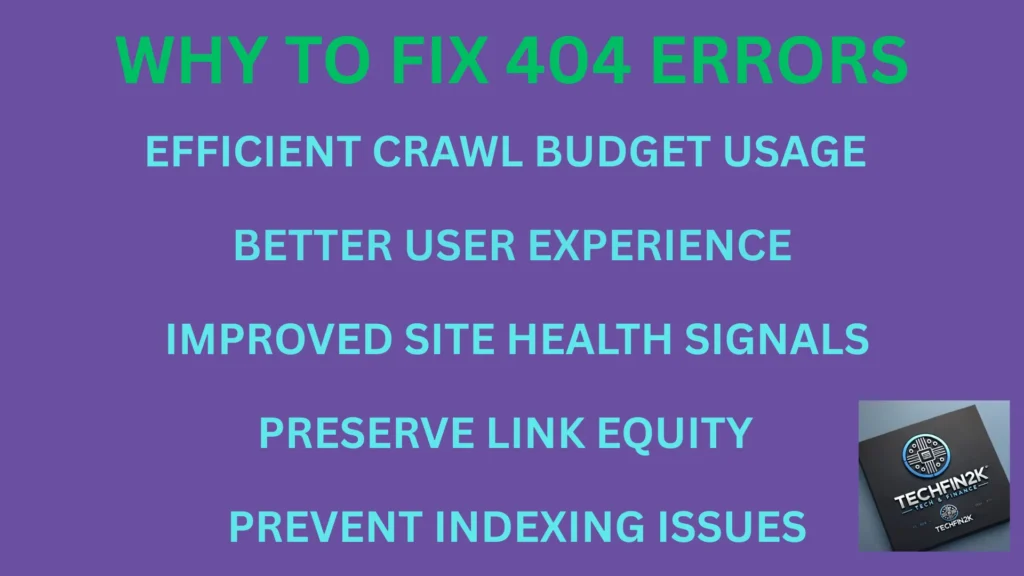
Before diving into the technical steps, it’s important to understand why 404 maintenance delivers measurable impact. This isn’t just about fixing errors — it’s about optimizing the signals your site sends to both users and search engines.
1. Improves Crawl Efficiency
Search engines allocate a limited crawl budget to each website — the number of pages they will fetch within a given timeframe. When Googlebot encounters a 404 URL, that request does not contribute to discovering or indexing useful content.
Real-world example: On my site, Googlebot attempted to crawl broken URLs 271 times in three months. After redirecting those paths, those same requests are now focused on indexable, valuable pages instead.
2. Protects the User Journey
A 404 page interrupts the visitor experience. If someone arrives from a referral link or search result and lands on a missing page, they typically leave rather than search for alternatives.
This increases bounce rates and reduces trust in your site’s reliability. Proper redirects ensure visitors reach relevant content immediately.
3. Preserves Earned Link Equity
Backlinks are a core ranking factor.
If another website links to a URL that returns 404, the link equity from that backlink is lost. A 301 redirect preserves that authority and transfers it to the correct page.
Without redirects, you gradually lose SEO value you’ve already earned.
4. Signals Site Health and Active Maintenance
A small number of 404s is normal. However, a large number can indicate outdated structure or poor maintenance.
Search engines favor sites that are technically clean and actively managed. Regularly fixing broken URLs reinforces these positive quality signals.
5. Keeps Search Console Reports Clean and Actionable
When 404 errors accumulate, reports in Google Search Console become cluttered, making it harder to identify real technical issues.
Cleaning up broken URLs keeps your data accurate and allows you to focus only on meaningful problems that affect performance.
The Bottom Line
Fixing 404 errors delivers compounding benefits. While a single redirect may seem minor, the combined effect of improved crawl efficiency, preserved link equity, and better user experience creates a stronger technical foundation for long-term SEO growth.
How to Find Your 404 Errors
Before creating redirects, you first need a complete list of broken URLs.
The most reliable source for this data is Google Search Console, because it shows exactly how Googlebot interacts with your site — including every 404 response it encounters.
Below is the method I personally use.
Method A — Google Search Console Crawl Stats (Recommended)
This method provides historical and comprehensive crawl data, making it the most accurate way to identify broken URLs.
Step 1 — Open Crawl Stats
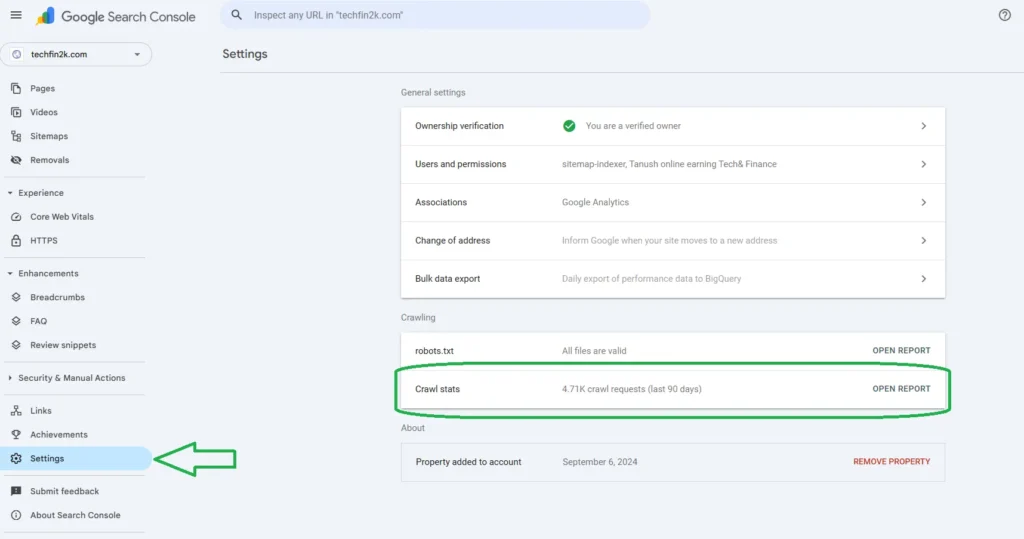
Open your property in Google Search Console.
From the left sidebar:
Settings → Crawl stats
This opens a detailed report showing:
- how often Google crawls your site
- which URLs it visits
- what HTTP status codes it receives
Step 2 — Locate 404 Responses
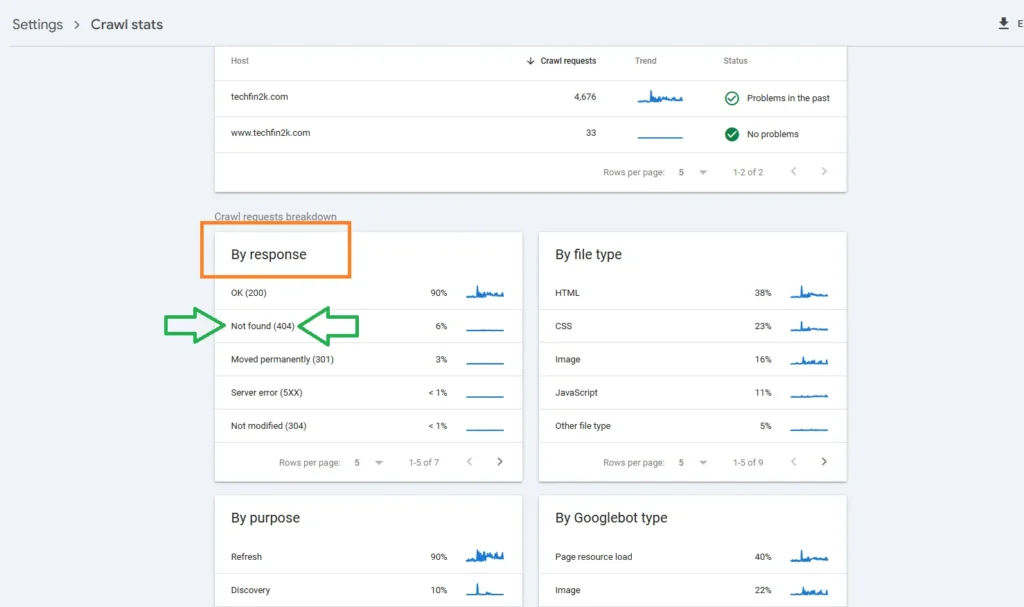
Scroll to Crawl requests by response.
You’ll see a table listing:
- 200 (OK)
- 301 (redirect)
- 404 (not found)
- other responses
Click Not found (404) to expand the full report.
Step 3 — Review the Full 404 List
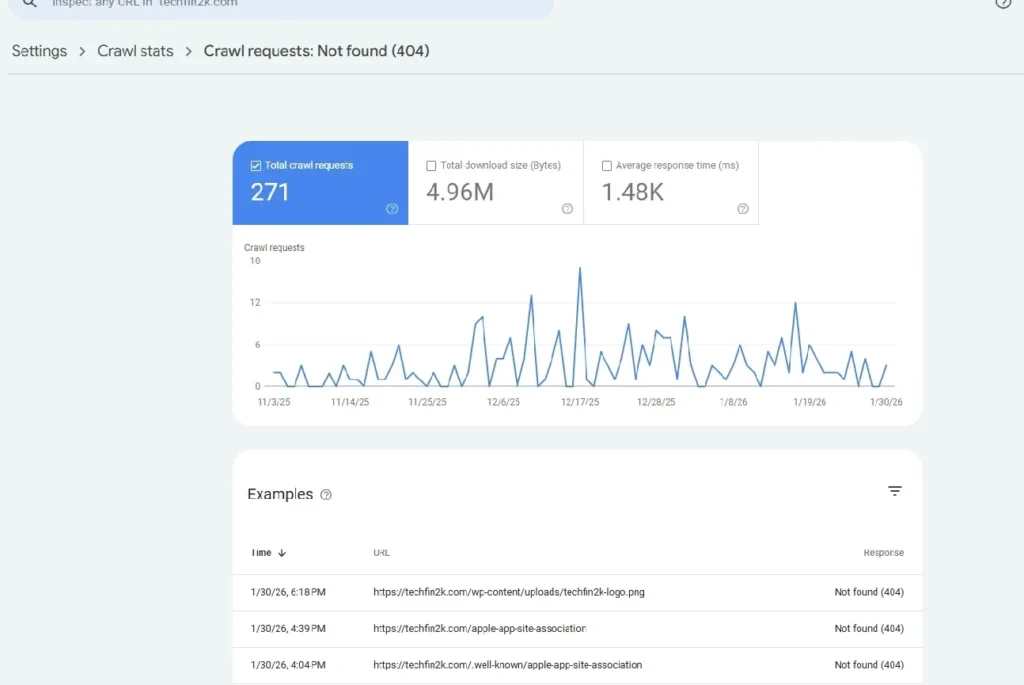
When you open the report, you’ll notice a pattern: the same URL often appears multiple times with different crawl dates. This confirms that Google doesn’t just “give up” after one 404; it retries those broken pages repeatedly.
My Data: Out of 271 total crawl attempts, I found only 75 unique URLs. The other 196 visits were Googlebot repeatedly checking dead ends. This is exactly why cleaning up the list is so impactful.
Step 4 — Export and Clean the Data
Click Export (top right corner) and download the file.
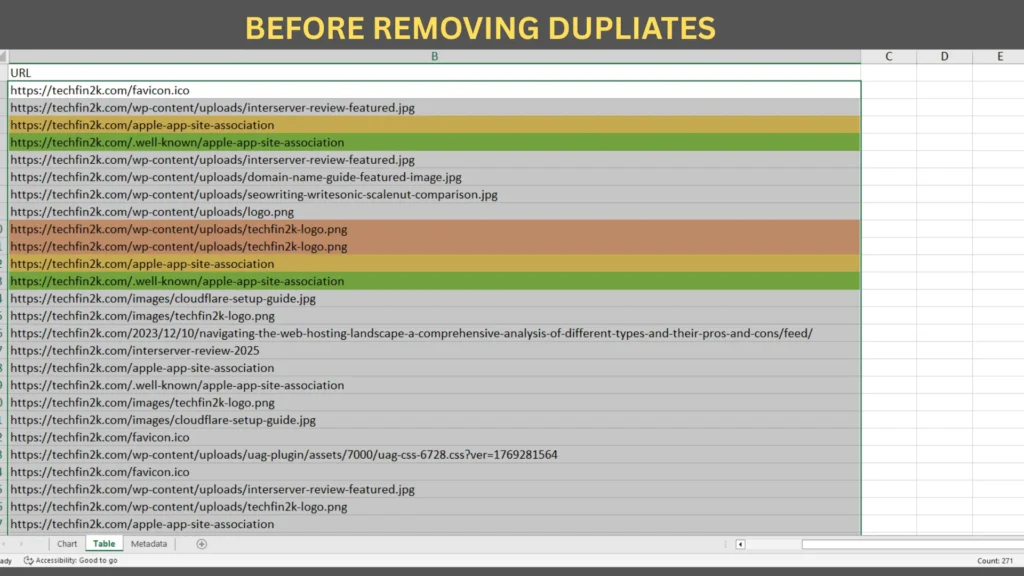
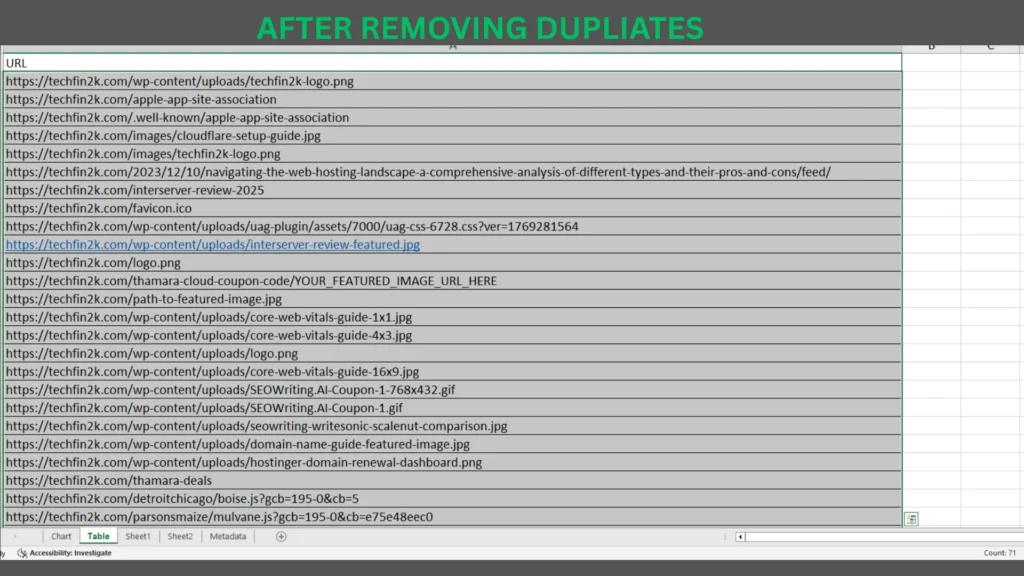
Now remove duplicates.
Excel
Data → Remove Duplicates → select URL column
Google Sheets
Data → Data cleanup → Remove duplicates
After cleaning, you’ll have only unique URLs — one redirect per URL.
Method B — Rank Math Plugin’s 404 Monitor (Supplementary)
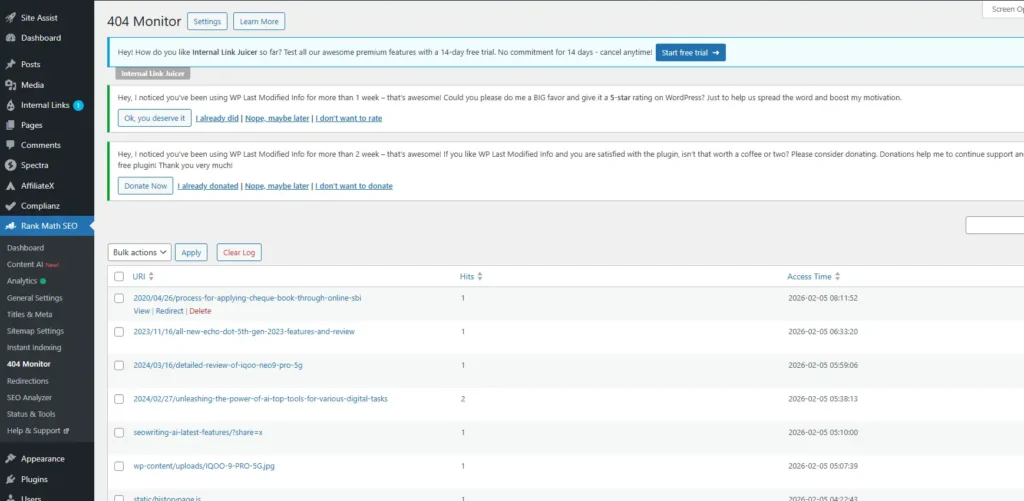
The Rank Math plugin also includes a built-in 404 Monitor feature inside the WordPress dashboard.
It tracks broken URLs in real time as visitors or bots encounter them, allowing you to quickly identify and fix new issues.
You can access it via:
WordPress → Rank Math SEO → 404 Monitor
However, it only records live traffic and does not provide historical crawl data. For that reason, it should be used as a supplementary monitoring feature, while Google Search Console remains the primary source for complete audits.
Using Rank Math makes 404 monitoring and redirects easier. If you want a full feature comparison with Yoast, check our guide: Rank Math vs Yoast SEO – Which Plugin Is Better?.
The 3 Types of 404 URLs (And How to Handle Each)
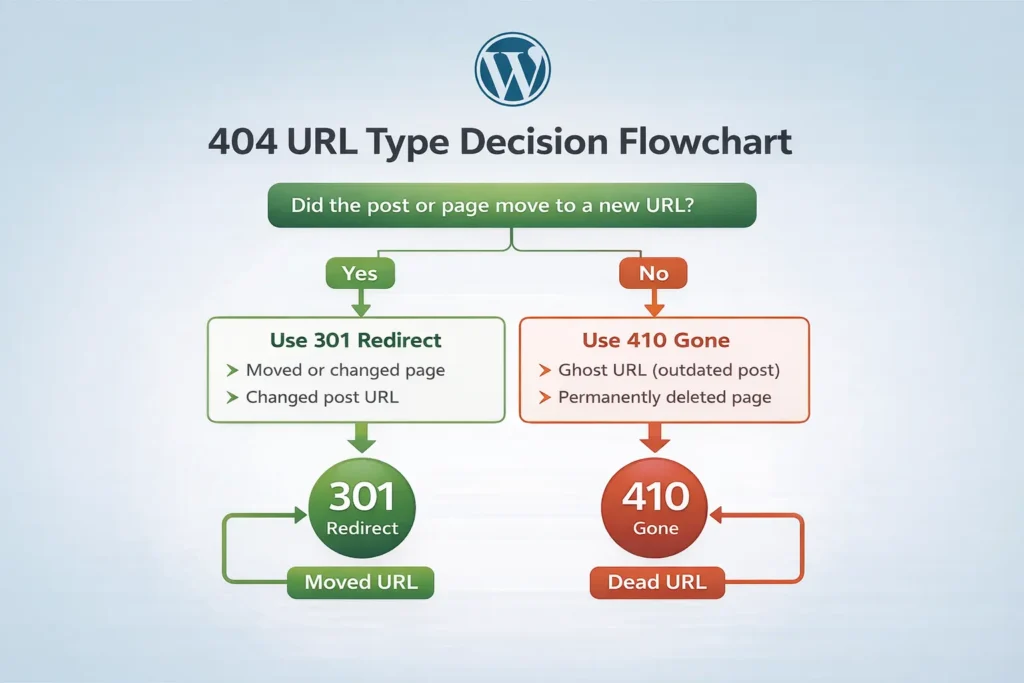
Not all 404 errors should be treated the same way.
Each broken URL has a different cause, and choosing the correct HTTP response code ensures search engines crawl your site efficiently and understand how each page should be handled.
After reviewing my data, I grouped my 404 URLs into three practical categories, each with a specific fix.
Type 1 — Ghost URLs → Use 410 (Content Deleted)
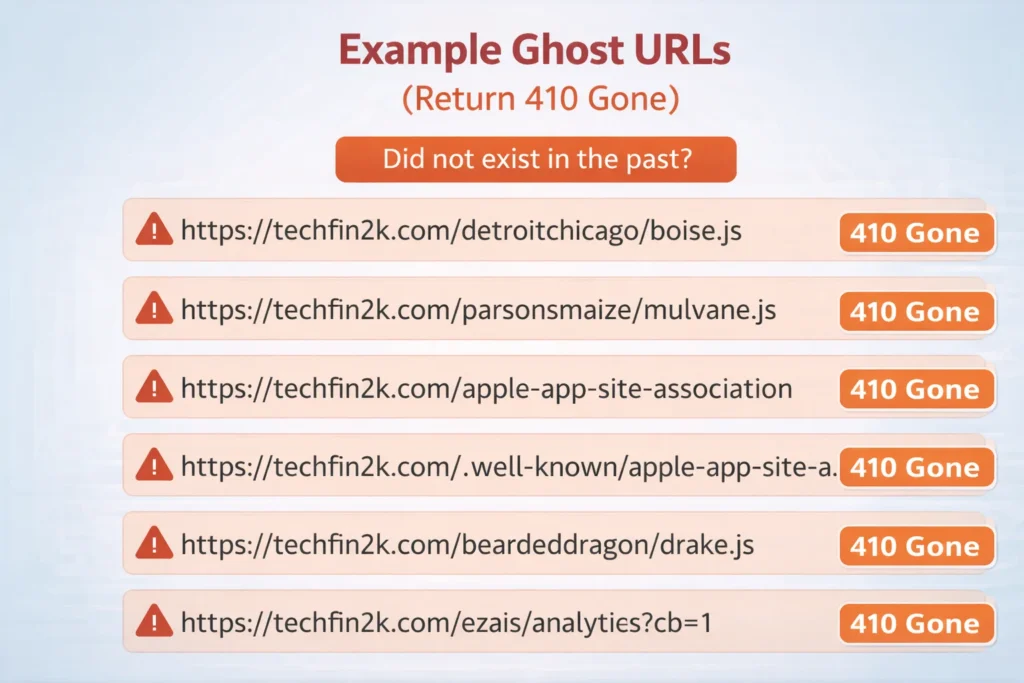
These are URLs that never existed on your site.
They typically appear because:
- bots probe for common system files
- external tools request standard paths
- automated crawlers guess URLs
Examples
/apple-app-site-association/.well-known/assetlinks.json/xmlrpc.php
Recommended response: 410 Gone
A 410 status explicitly tells search engines the resource has been permanently removed.
Compared to a standard 404, Google typically stops retrying these URLs sooner, which improves crawl efficiency.
Use 410 when the URL:
- never existed
- has no replacement
- should not be crawled again
Type 2 — Moved or Renamed Resources → Use 301 (Permanent Redirect)
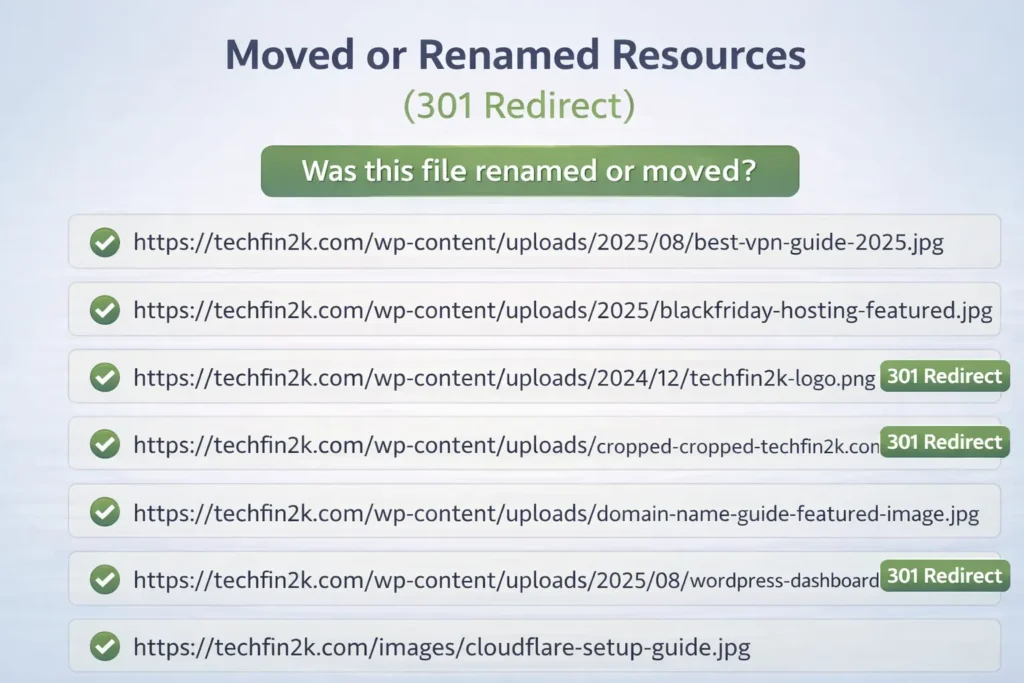
These are files that previously existed but were moved or renamed.
Common examples include:
- images
- logos
- PDFs
- downloads
- media files
Examples
/wp-content/uploads/techfin2k-logo.png→ new logo path/inteserver-view-featured-image.jpg→ updated media folder
Recommended response: 301 Permanent Redirect
A 301 redirect signals that the resource has permanently moved.
This ensures:
- visitors reach the correct file
- backlinks remain valid
- link equity transfers to the new location
Use 301 whenever the content still exists but at a different URL.
Type 3 — Updated or Renamed Posts → Use 301 (Permanent Redirect)
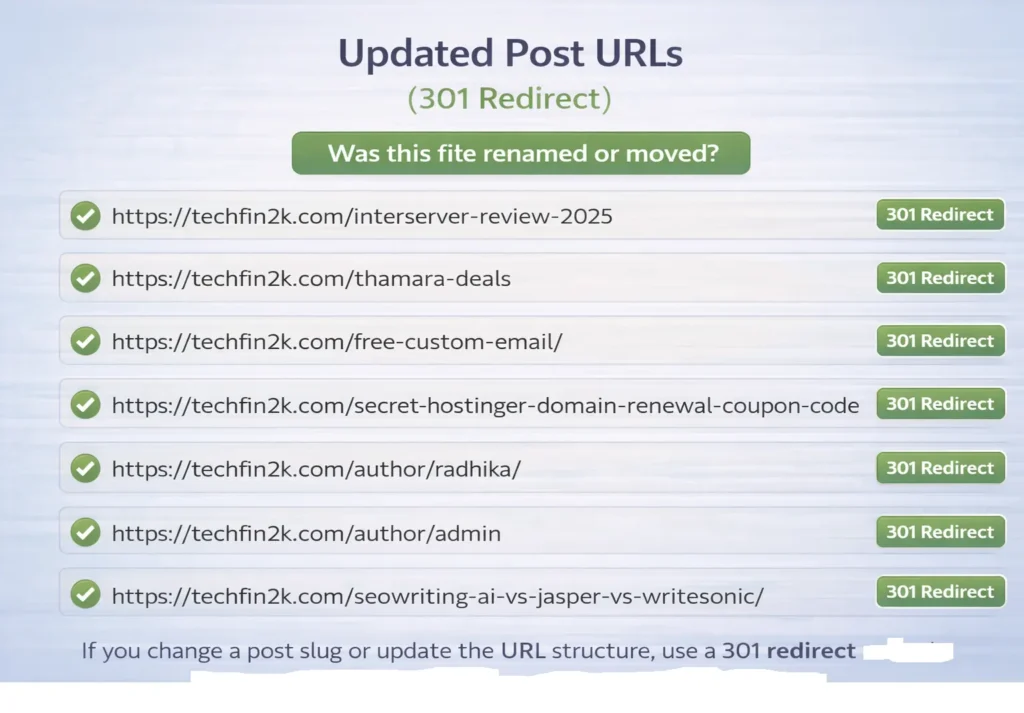
These are blog posts or pages where the URL slug changed during updates or restructuring.
This often happens when:
- updating yearly content
- improving URL structure
- consolidating articles
- merging pages
Examples
/interserver-review-2025→/interserver-hosting-review-2025/author/radhika/→/about-radhika-vatlam//free-custom-email/→/free_custom_email/
When you change a slug like this, the old URL immediately becomes a 404 error.
Instead of losing traffic and backlinks, we add a 301 permanent redirect so both users and Google are automatically sent to the new page.
This preserves link equity, avoids broken links, and keeps your SEO intact.”
Recommended response: 301 Permanent Redirect
Redirecting old URLs ensures:
- users reach the latest version
- bookmarks remain valid
- backlinks retain their value
- search engines consolidate rankings correctly
Redirect Decision Logic
Use this simple framework:
- Exact replacement exists → redirect to that page
- Similar content exists → redirect to closest match
- No relevant replacement → return 410
- Avoid redirecting everything to the homepage
Quick Reference Table
| URL Type | Response Code | When to Use |
|---|---|---|
| Ghost URLs | 410 Gone | URL never existed |
| Moved resources | 301 Permanent | File moved or renamed |
| Updated posts | 301 Permanent | Content replaced with new version |
How to Add Redirects in Rank Math Free — Step by Step
All examples below use the free version of Rank Math. No Pro features are required.
⚠️ Before you start
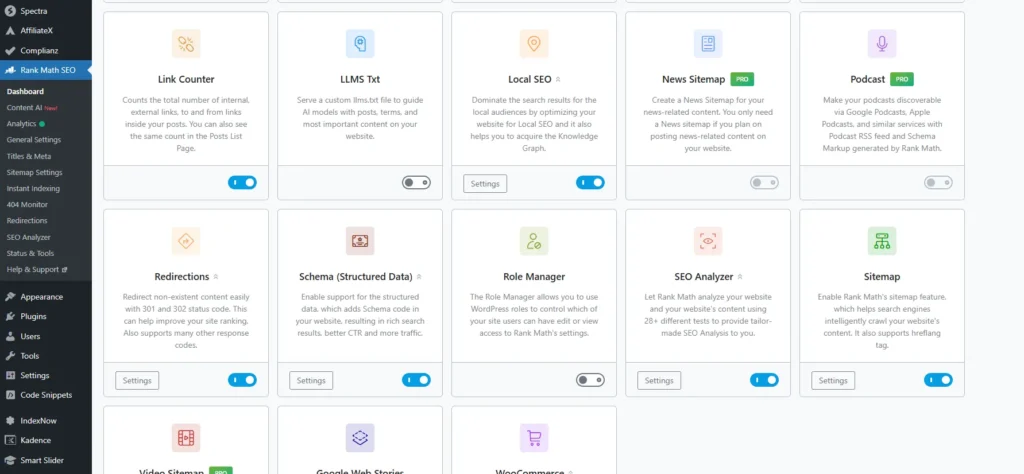
Make sure the Redirections module is enabled.
Go to:
Rank Math SEO → Dashboard → Modules → Redirections → ON
If the module isn’t visible, enable Advanced Mode first.
Navigate to:
Rank Math SEO → Redirections
Click Add New to create a redirect.
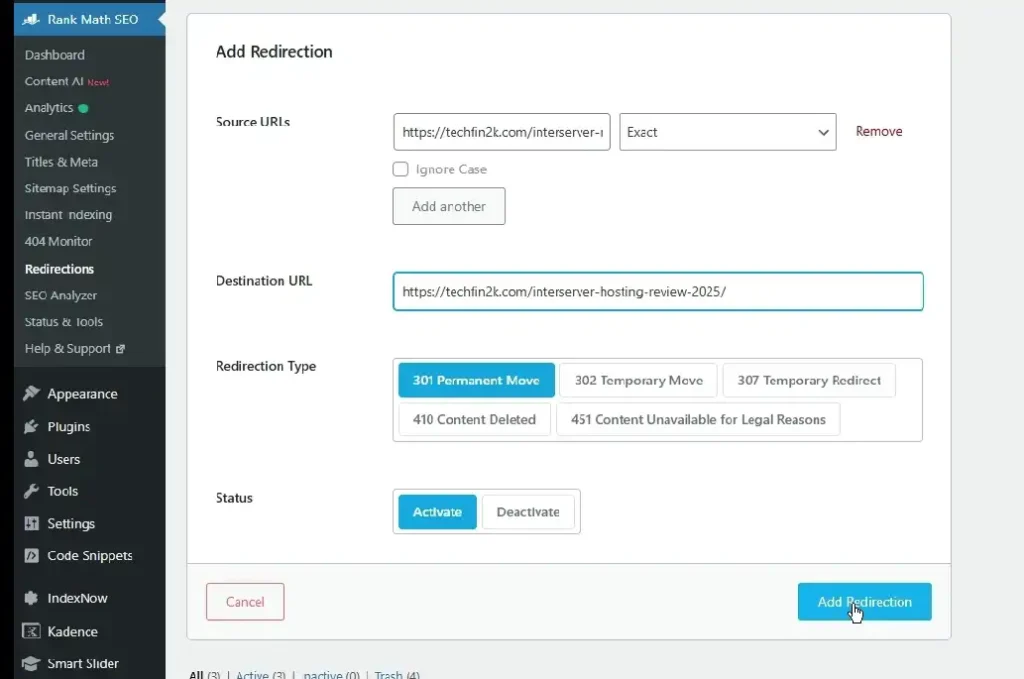
Adding a 301 Redirect (Moved Resource)
Use this when a file or page has moved to a new location.
📍 Image Placement #12 — 301 Redirect Form
File name:rank-math-add-301-redirect-logo-form-filled.png
Alt text:
Rank Math redirection form showing old logo URL redirected to new logo using 301
Fill in:
- Source URL → old path only
- Destination URL → full URL with https://
- Match Type → Exact
- Redirection Type → 301 Permanent Move
- Status → Activate
Click Add Redirection
💡 Tip:
Using the full destination URL avoids edge-case issues and keeps redirects explicit.
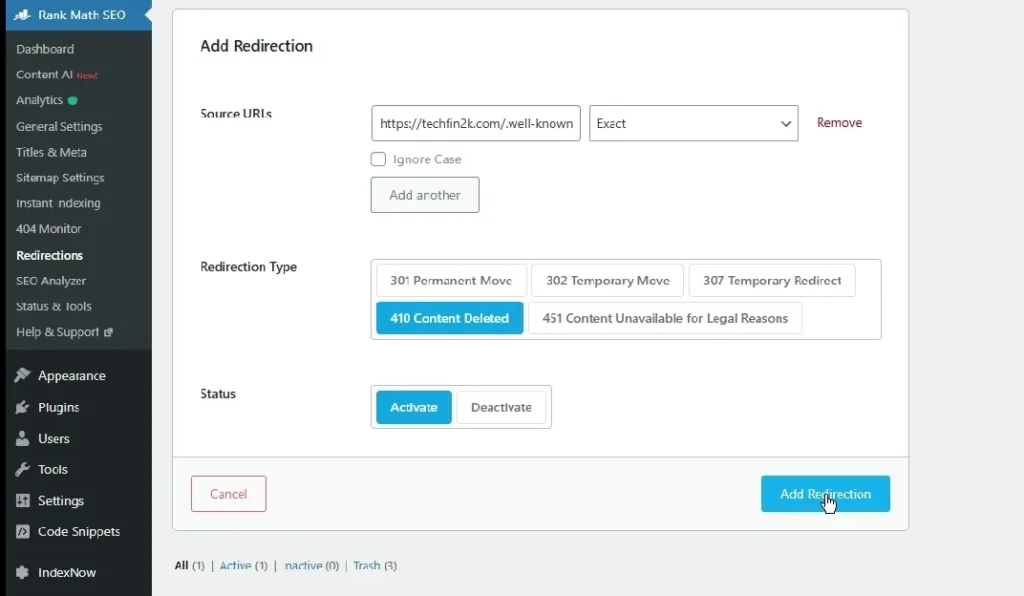
Adding a 410 Response (Ghost URL)
Use this when a URL never existed and should not be crawled again.
Fill in:
- Source URL → ghost path
- Match Type → Exact
- Redirection Type → 410 Content Deleted
- Status → Activate
Notice the destination field is disabled — this is expected. A 410 does not redirect anywhere.
Adding a 301 Redirect (Updated Post)
Same process, applied to posts or pages.
Use:
- old slug → source
- updated slug → destination
- 301 permanent
💡 Note on Redirect Syncing
New redirects may not appear instantly in the dashboard list. However:
- The redirect works immediately
- The list may update later
Always verify using an incognito test.
What About Soft 404 Errors?
This is a related concept that many WordPress users overlook.
What is a Soft 404?
A soft 404 occurs when:
- the server returns 200 OK
- but the page contains little or no useful content
Because the status code indicates success, search engines continue crawling the page, even though it provides no value.
Over time, this can lead to unnecessary crawl activity and inefficient indexing.
Common sources on WordPress
Soft 404s may occur from:
- empty tag or category archives
- empty search result pages
- thin placeholder pages
- deleted products returning 200
- custom templates that show “not found” without proper status codes
Note: these pages are not always flagged, but may be treated as soft 404s when content is minimal.
How to reduce soft 404s
Option 1 — Noindex thin archives
Rank Math → Search Appearance → set empty archives to noindex
Option 2 — Block search URLs
robots.txt:
Disallow: /?s=
Option 3 — Add content or remove
Either add useful content or delete unused pages entirely.
Verify Your Redirects Are Working
After creating redirects, always verify that they function correctly.
Do not rely solely on the plugin dashboard. Browser caching can serve old responses and create misleading results.
Testing in incognito or private mode ensures you see the actual server response.
Test 1 — 301 Redirect (File)
Steps:
- Open a new incognito window
- Enter the old file URL
- Press Enter
Expected result:
The browser loads the new file, and the address bar updates to the new path automatically.
Test 2 — 410 Response (Ghost URL)
Steps:
- Open a new incognito window
- Enter the ghost URL
Expected result:
The page returns a 410 response and does not display content. This confirms the URL is permanently removed.
Test 3 — 301 Redirect (Post)
Steps:
- Open a new incognito window
- Enter the old post URL
Expected result:
You are redirected to the updated post, and the address bar reflects the new URL.
If any redirect fails, review the source path carefully. Even small issues — such as missing slashes or typos — can prevent the redirect from triggering.
How Long Until Google Detects the Changes?
Redirects take effect immediately for visitors, but search engines require time to process them.
Google must first recrawl the affected URLs before reporting updates in Google Search Console.
Typical timeline
Week 1
Google begins discovering redirects during normal crawling. Reports may not change yet.
Weeks 2–3
Crawl Stats start reflecting fewer 404 responses and more 301/410 responses.
Week 4+
Broken URL requests decrease, and crawl activity shifts toward valid, indexable pages.
Redirect processing depends on crawl frequency and page importance, so timelines vary. Consistent improvements are usually visible within a few weeks.
Setting Up a Custom 404 Page (User Experience Enhancement)
Even with proper redirects, new broken links will occasionally occur.
A well-designed custom 404 page helps retain visitors and guides them to relevant content instead of losing them immediately.
An effective 404 page should include:
- a clear explanation that the page is unavailable
- a search bar
- links to popular or important content
- normal site navigation
Most WordPress themes include a default 404.php template that can be customized.
If you use Elementor Pro, you can design a dedicated 404 layout visually and assign it through the Theme Builder.
What If You Have 100+ URLs? Bulk Redirect Methods
Adding redirects one by one inside the Rank Math interface works well for small batches.
However, when managing dozens or hundreds of URLs, bulk methods are more efficient.
Below are two practical approaches that scale better.
Option 1 — Server-Level Redirects (Most Efficient)
Redirects added at the server level execute before WordPress loads, making them the fastest and most scalable solution.
This approach is ideal for:
- large migrations
- hundreds of redirects
- performance-sensitive sites
Apache (.htaccess)
Redirect 301 /old-url https://foenix.techfin2k.com/new-url
Redirect 410 /ghost-url
NGINX
location = /old-url {
    return 301 https://foenix.techfin2k.com/new-url;
}

location = /ghost-url {
    return 410;
}
Always back up configuration files before editing.
Option 2 — Redirection Plugin (Free)
The Redirection plugin supports CSV bulk imports in its free version.
You can:
- prepare redirects in Excel or Sheets
- import them all at once
- manage everything inside WordPress
For large lists, this is often the easiest method for non-technical users.
Tip: Use only one redirect system at a time to avoid conflicts.
Final Recommendation
- 10–30 URLs → Rank Math (manual)
- 50–200 URLs → Redirection plugin
- 200+ URLs → server-level rules
Choose the method that matches your scale and technical comfort.
Common Mistakes to Avoid
1. Redirect Chains
Example:
A → B → C
Chains:
- slow down requests
- increase crawl time
- dilute signals
Always redirect directly to the final destination.
2. Using 301 for Ghost URLs
If a URL never existed, do not redirect it.
A 301 implies content moved.
Use 410 Gone instead to indicate permanent removal.
3. Redirecting Everything to the Homepage
Generic homepage redirects:
- confuse users
- reduce relevance
- weaken SEO signals
Redirect to the most contextually related page whenever possible.
4. Skipping Testing
Redirects can fail due to small typos or path mismatches.
Always test in incognito mode after adding new rules.
5. Treating 404 Cleanup as a One-Time Task
Broken URLs appear continuously as your site evolves.
Make it a routine to:
- review Crawl Stats monthly
- fix new 404s
- update outdated links
Regular maintenance keeps your site technically healthy.
Broken Link Building: A Secondary Benefit
Beyond fixing crawl issues, 404 audits can occasionally reveal link-building opportunities.
Some broken URLs may still have external backlinks pointing to them. In those cases, you can recover value in two practical ways.
1. Request an update
If another site links to an outdated URL, you can contact the webmaster and inform them the link is broken. Suggest the correct replacement.
While not every request results in a change, some site owners are willing to update outdated links.
2. Restore relevant content
If the old URL previously attracted meaningful backlinks and the topic is still relevant, consider recreating updated content at the same address instead of redirecting.
This preserves the existing link signals and avoids losing historical references.
Think of this as an optional optimization — not the primary goal of 404 cleanup, but a useful side benefit when applicable.
“Looking to build more backlinks? Here’s how we approach it: Our Link Building Strategy: What Actually Works in 2026.”
FAQ
Q: Do redirects harm SEO?
No. Proper 301 (permanent) redirects are recommended by Google and pass link equity from the old URL to the new one.
Issues typically arise only from poor implementations such as redirect chains, loops, or irrelevant destinations.
Q: How quickly do Rank Math redirects activate?
Immediately.
The redirect becomes active as soon as it is saved. The dashboard list may update with a delay, but the rule itself works instantly. Always verify using an incognito window.
Q: Should I use 301 or 302?
Use 301 for permanent URL changes.
Use 302 only for short-term or temporary scenarios such as testing or maintenance. For most site updates, 301 is the correct choice.
Q: Can I redirect to an external website?
Yes. However, this should be used sparingly and only when necessary.
Excessive external redirects can confuse users and may appear suspicious from a security perspective.
Q: What are soft 404 errors?
Soft 404s occur when a page returns 200 OK but provides little or no meaningful content.
Search engines may continue crawling these pages unnecessarily. You can reduce them by:
- noindexing thin archives
- blocking internal search pages
- removing empty templates
Q: Will 404 errors ever disappear completely?
No. New 404s naturally appear as content changes over time.
The goal is not zero errors, but regular monitoring and maintenance.
Q: Do I need to request a Google recrawl after adding redirects?
Not required. Google will discover redirects during normal crawling.
You can optionally use the URL Inspection tool in Google Search Console to speed up reprocessing for specific pages.
Final Thoughts
404 maintenance is not flashy, but it is foundational.
Cleaning broken URLs improves:
- crawl efficiency
- user experience
- link equity preservation
- technical site health
Individually, each fix is small. Collectively, they create a stronger, more reliable site that search engines can crawl and index more effectively.
Treat this as routine maintenance rather than a one-time task.
